AI Cloud User Guide
This guide is written as a working procedure. Start here when you are new to AI Cloud, when you are preparing a tenant for a team, or when you need to automate basic runtime operations through the CLI or SDK.
What You Can Do From This Guide
| Goal | Start here | You are done when |
|---|---|---|
| Sign in for the first time | First-Time User Walkthrough | Tenant, project, account security, and launch options are visible. |
| Prepare account security | Set Up Account Access | MFA, SSH keys, API keys, and sessions are understandable. |
| Launch compute | Launch Compute | A compute runtime becomes active and has a connect action. |
| Launch an app | Launch Apps And Runtimes | The app opens through its route or endpoint and has health/readiness evidence. |
| Connect and work | Connect To A Runtime | SSH, terminal, route, endpoint, or scheduler access works. |
| Monitor spend | Monitor Usage And Cost | You know the hourly burn and who owns cleanup. |
| Release work | Release And Clean Up | Billing stops and cleanup reaches a released state. |
| Use CLI or SDK | CLI And SDK Workflow | Login, project context, idempotency, and credential storage are clear. |
| Fix a blocked state | Troubleshooting | You know the owner, next action, and evidence packet. |
First-Time User Walkthrough
Prerequisites
Before signing in, confirm that your tenant admin has given you:
- an AI Cloud user account;
- tenant membership;
- project membership;
- a runtime or catalog entitlement;
- enough quota, balance, or billing approval for the walkthrough;
- a support path for access or launch failures.
If your walkthrough requires SSH, prepare an SSH public key before launching compute. Do not upload or paste a private key.
Step 1: Sign In
- Open the AI Cloud application URL supplied by your environment owner.
- Complete the identity provider sign-in flow.
- Confirm the top bar shows the expected tenant and project.
- Confirm the region and mode match the task you are about to perform.
Stop and ask your tenant admin for help if the tenant or project is missing. Launching work in the wrong project creates confusing billing, access, and cleanup ownership.
Step 2: Check The Home Context
On the landing page, confirm:
- the tenant or workspace name is correct;
- the project name is correct;
- Workloads, Compute, Apps, Storage, Access, and Account are visible according to your role;
- there are no visible account setup blockers.
If the page is still loading after refresh, do not capture it as a guide or support screenshot. Wait for the cards and actions to resolve or capture the visible error state with its correlation ID.
Step 3: Open Account Security
Open Account > Security.
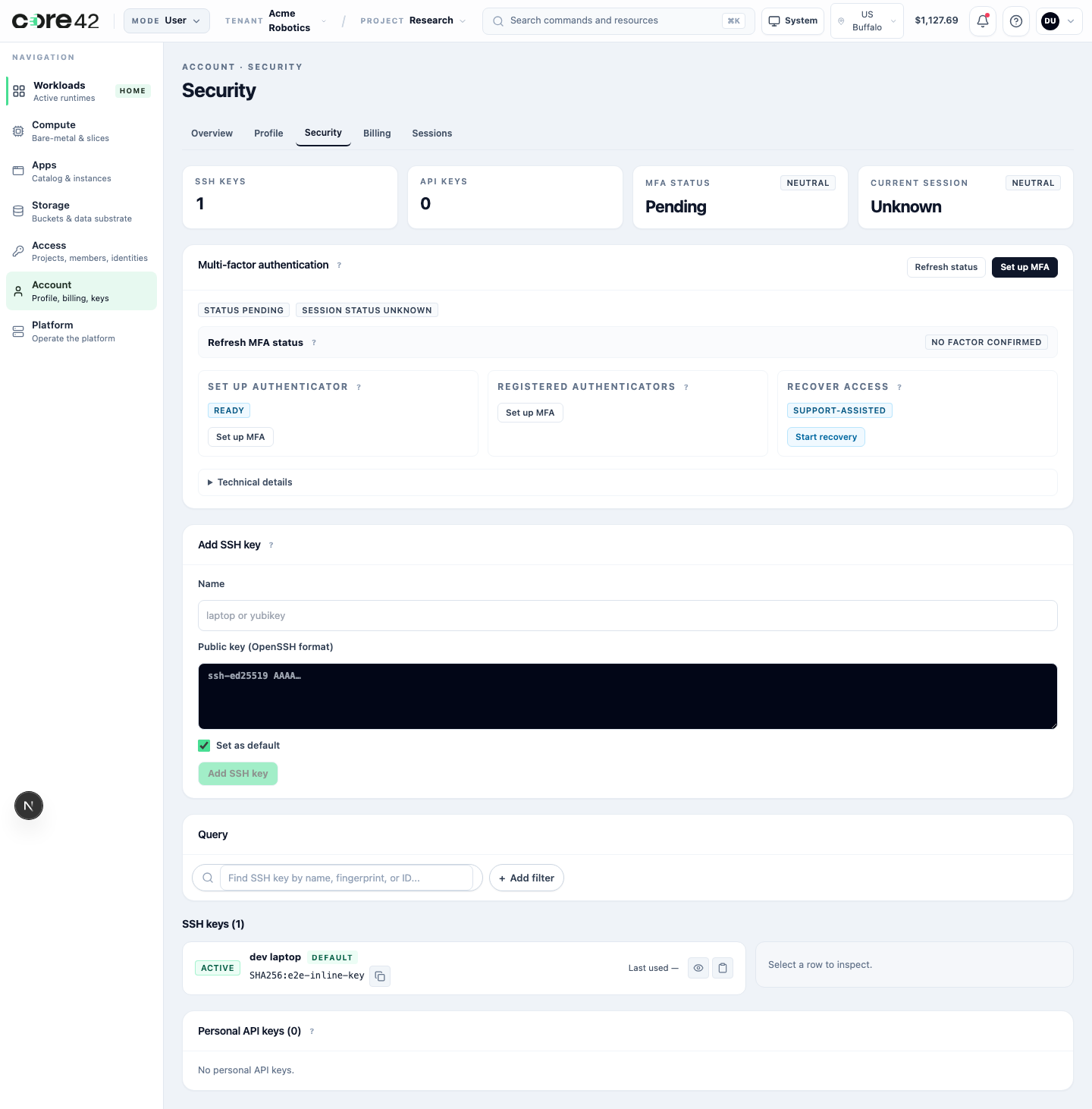
Confirm:
- MFA status is understandable;
- SSH key count matches what you expect;
- API keys are not created unless you need automation;
- sessions are recognizable;
- recovery or support path is visible if MFA or sessions need attention.
Step 4: Open The Runtime Surfaces
Open Workloads, Compute, and Apps.
You should be able to answer:
- What can I launch?
- Which project will own the launch?
- What will it cost or consume?
- How will I connect after it is active?
- Who cleans it up?
If Compute or Apps are empty, check entitlement, project role, quota, region, and tenant handoff before assuming the product is broken.
Set Up Account Access
MFA
Use MFA setup when the product requires it for sign-in or sensitive actions. If MFA is already active, keep recovery current before replacing a phone or authenticator app.
Do not share MFA QR codes, one-time codes, seeds, screenshots containing secrets, or recovery secrets in tickets.
SSH Keys
Use SSH keys for runtimes that expose SSH.
- Open Account > Security.
- Find SSH keys.
- Add a public key with a recognizable name, such as laptop, workstation, or automation identity.
- Confirm the key appears in the list.
- Use that key only for the workloads where SSH is expected.
Remove keys for retired laptops and rotate keys when a device is lost.
API Keys
Create API keys only when automation needs them. Prefer service accounts for team-owned automation when your tenant enables them.
For every API key, record:
- owner;
- purpose;
- project scope;
- rotation expectation;
- cleanup owner.
Launch Compute
Use Compute when you need direct GPU or CPU capacity rather than a packaged app.
Step 1: Choose The Project
Check the top bar. The selected project controls access, billing attribution, runtime visibility, and cleanup ownership.
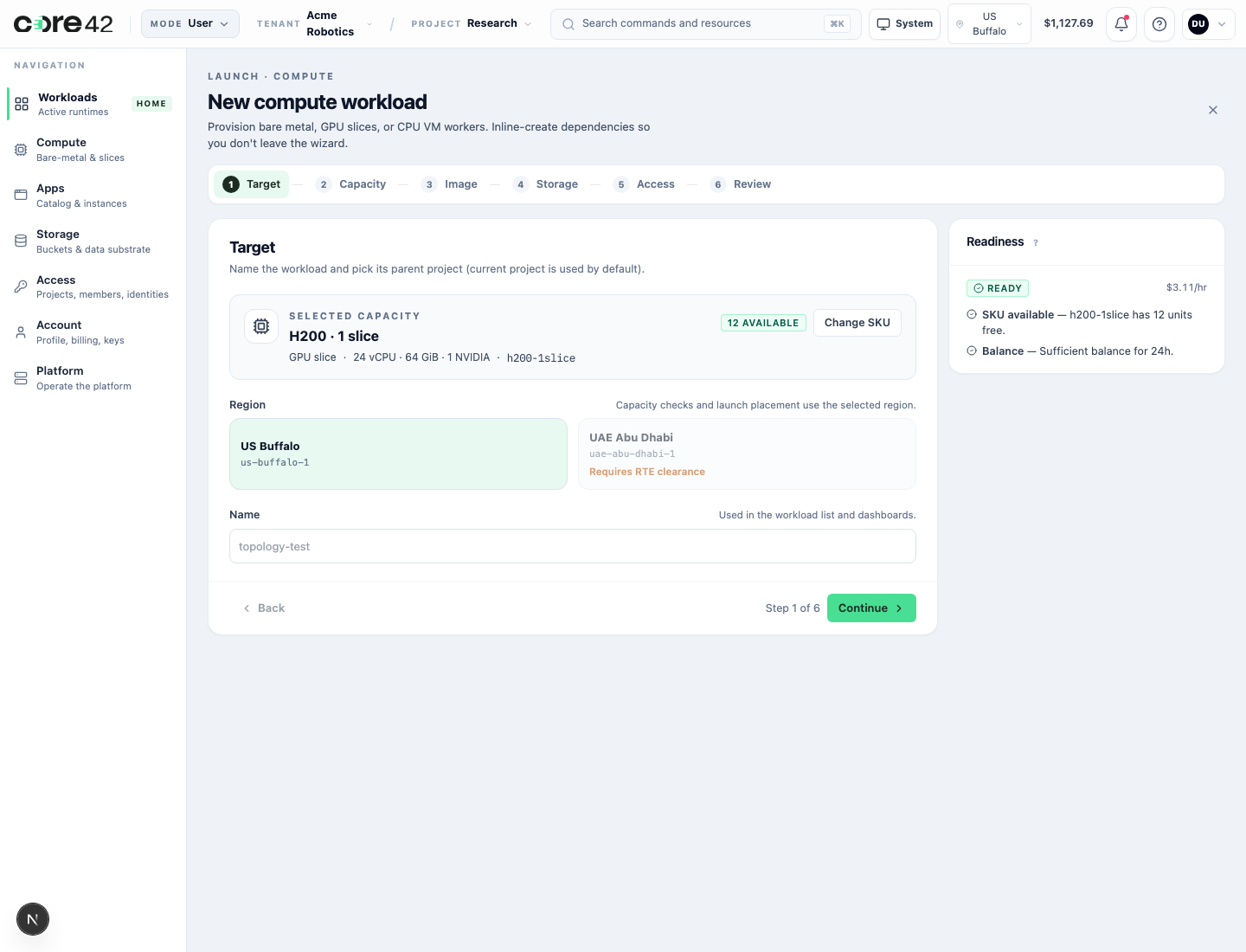
Step 2: Open Compute
Open Compute, then choose the SKU, slice, or profile your tenant allows.
Step 3: Review Launch Inputs
Before submitting, verify:
| Input | What to check |
|---|---|
| Runtime name | Use a name that identifies the owner or experiment. |
| SKU or slice | Choose the smallest profile that satisfies the work. |
| Region | Use the expected capacity pool and route locality. |
| Image | Pick the runtime environment required by the work. |
| SSH key | Select a public key you control, if SSH is required. |
| Storage | Attach only required buckets or project storage. |
| Cost | Confirm hourly burn, balance, entitlement, and quota. |
Submit once. Retry only when the UI or API says the operation is safe to retry.
Step 4: Wait For Active
Open Workloads and find the runtime.
Expected sequence:
If it enters a blocked or failed state, capture the workload ID, visible state, and correlation ID.
Launch Apps And Runtimes
Use Apps for packaged experiences such as notebooks, IDEs, schedulers, compose stacks, and inference endpoints.
| App family | What to verify before launch | Success signal |
|---|---|---|
| Notebook or IDE | workspace, storage, image, route | browser route opens and workspace is usable |
| Inference endpoint | model, endpoint type, auth, health | endpoint health or model list responds |
| Scheduler | scheduler type, workers, job path | scheduler route opens and a job can be submitted |
| Compose app | image stack, ports, health checks | app route and declared ports are healthy |
If an app requires manual operator steps every time it launches, treat that as a readiness gap before handing it to users.
Connect To A Runtime
Connect from the workload detail page after the runtime is active.
| Connect action | Use it when | First check if it fails |
|---|---|---|
| SSH | You need shell access from your workstation. | SSH key is registered and selected. |
| Browser terminal | You need shell access without local SSH setup. | Runtime is active and terminal route is available. |
| Notebook or IDE route | You need browser workspace access. | Route opens and auth completes. |
| Scheduler route | You need job submission or cluster UI. | Scheduler app is healthy. |
| Inference endpoint | You need API access to a model. | Endpoint route and token/auth mode are correct. |
| Metrics | You need runtime health or usage. | Runtime is active and metrics are enabled. |
Do not put tokens in URLs. Use the product connect action or the documented header/protocol boundary for the specific runtime.
Monitor Usage And Cost
During a run, keep these visible:
- active runtime state;
- project and tenant context;
- hourly burn;
- balance, quota, or entitlement state;
- storage owner and retention expectation;
- runtime owner and cleanup owner.
For long-running work, write down who is responsible for release and when it should happen.
Release And Clean Up
Release unused runtimes promptly.
- Open Workloads.
- Select the runtime.
- Use the release action.
- Wait for cleanup state to complete.
- Confirm billing or hourly burn no longer includes the runtime.
If release fails, use the visible retry when available. If retry remains blocked, escalate with the runtime ID and correlation ID. Do not reuse a runtime that is in a failed cleanup state for new work.
CLI And SDK Workflow
CLI Login
gpuaas --base-url https://api.<your-ai-cloud-domain> auth login

gpuaas auth whoami
gpuaas context show
Normal user login opens the environment identity provider in a browser and
uses OIDC PKCE. Use --no-browser from a remote shell when you need to copy
the login URL into another browser.
The CLI stores local session context in ~/.gpuaas-cli/config.json. Set
GPUAAS_CLI_HOME=/path/to/dir when you need an isolated config for a test,
shared walkthrough, or CI smoke.
Stored values can include:
- API base URL;
- access token;
- refresh token;
- tenant ID;
- project ID;
- username;
- terminal gateway URL.
Run gpuaas auth logout when switching environments or after a shared
workstation walkthrough.
CLI State Checks
gpuaas catalog list --output table
gpuaas allocations list --status active --output table
gpuaas billing balance
SDK Auth Pattern
SDKs should receive tokens from the host application, identity provider, or service-account flow. They should not silently read a developer CLI config unless the SDK is explicitly building a local developer tool.
For mutations, set an idempotency key so retries do not create duplicate work.
Troubleshooting
Start with the visible state.
| Problem | First action | Next owner |
|---|---|---|
| Tenant missing | Confirm invitation and tenant membership. | Tenant admin |
| Project missing | Confirm project role. | Tenant admin or project owner |
| Access denied | Confirm role and scope. | Tenant admin |
| MFA blocked | Start recovery or setup. | User, then tenant admin |
| Catalog empty | Check entitlement, region, and quota. | Tenant admin |
| Capacity unavailable | Choose another profile or request capacity. | Tenant admin or support |
| Billing restricted | Check balance, entitlement, or policy. | Billing owner |
| Provisioning failed | Capture workload and correlation ID. | Platform support |
| Connect failed | Confirm active state and action clicked. | User, app owner, or support |
| Release failed | Retry once if visible; escalate if still blocked. | Platform support |
Support packet:
Tenant:
Project:
User or service account:
Runtime/resource:
Action attempted:
Visible state:
Correlation ID:
Timestamp and timezone:
Expected result:
Actual result:
Recent change:
Do not include bearer tokens, cookies, private keys, passwords, one-time codes, MFA QR payloads, or raw secret values.