Launch Compute
Use compute when you need direct GPU or CPU capacity instead of a packaged app experience. Compute runtimes are project-scoped, billable, and should be released when work is complete.
Flow
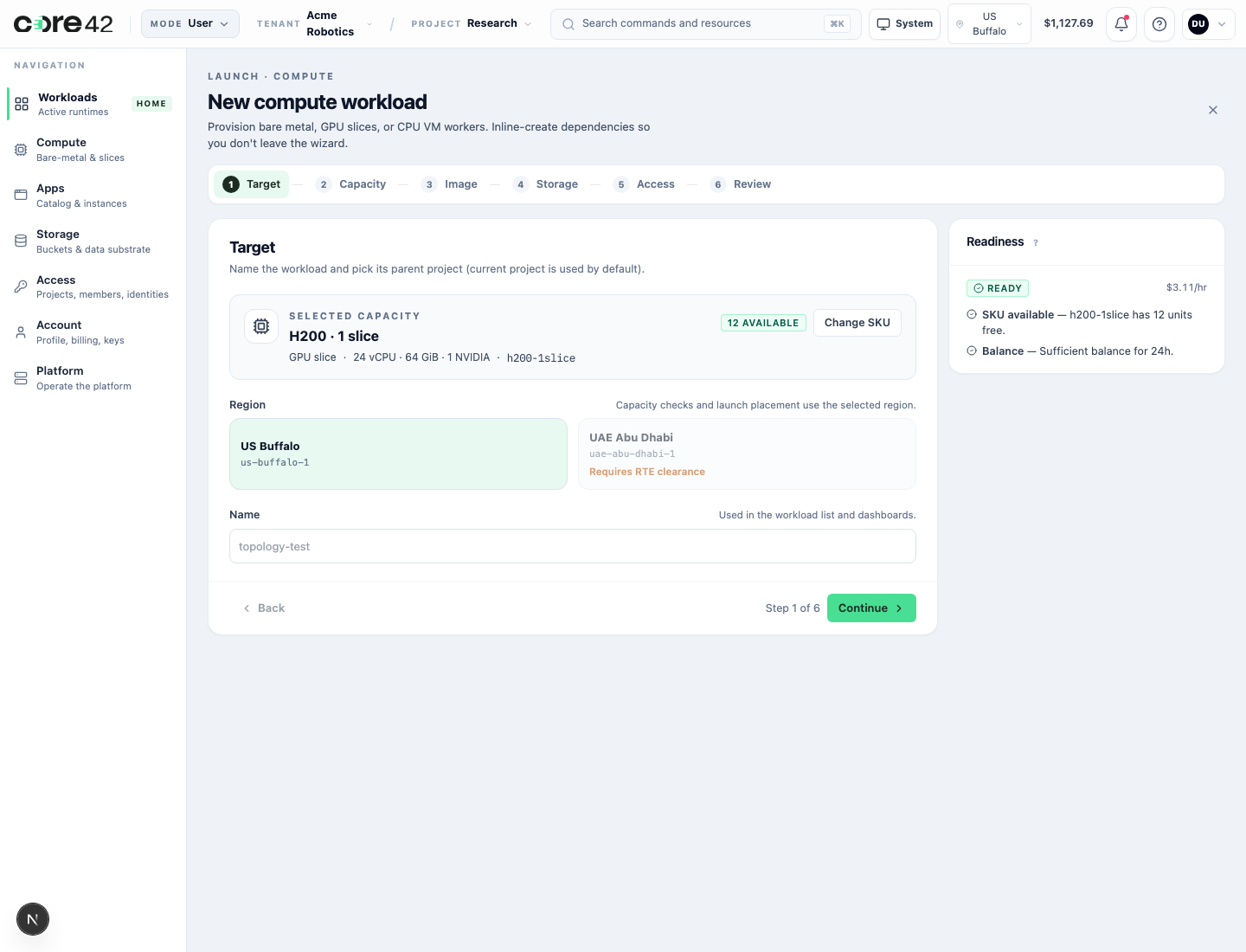
Launch From The UI
- Confirm the tenant and project in the top bar.
- Open Compute.
- Choose the SKU or slice profile.
- Choose the image or runtime template.
- Select the SSH key or supported access method.
- Review hourly burn and quota.
- Launch.
Launch Inputs
| Input | Why it matters |
|---|---|
| Project | Owns membership, billing, and runtime visibility. |
| SKU or slice | Determines GPU/CPU/memory capability and hourly burn. |
| Region | Determines capacity pool and route locality. |
| Image | Defines the runtime base environment. |
| SSH key | Enables SSH-based access when supported. |
| Storage | Provides workspace, model, or dataset access. |
Connect
Open the workload detail page after the runtime is active.
Supported compute connect actions can include:
- SSH command;
- browser terminal;
- metrics;
- workload detail and lifecycle actions.
If a connect action is missing, check:
- the runtime is active;
- your project role has access;
- your SSH key is registered if SSH is required;
- the route or terminal session has not expired;
- no warning or needs-action item is visible.
Monitor Usage
During a run, review:
- runtime state;
- hourly burn;
- project balance or quota;
- active session state;
- metrics or health if available.
Long-running compute should have an owner and a reason. Avoid leaving capacity running after validation.
Release
Release from the workload detail page when finished. Release should stop billing for the runtime and move cleanup forward.
If release fails:
- use the visible retry when available;
- capture the correlation ID;
- do not manually reuse the runtime for new work until cleanup state is clear.
CLI Equivalent
Use the CLI for state checks and cleanup automation.
gpuaas allocations list --status active --output table
gpuaas allocations release --id <allocation_id> --project-id <project_id>
gpuaas allocations list --status released --project-id <project_id>
For browser terminal or SSH launch details, use the connect action shown on the workload detail page.
Support Packet
When asking for help, include:
- tenant and project name;
- runtime name or allocation ID;
- visible state;
- action attempted;
- correlation ID;
- whether SSH, terminal, route, or release failed.
Do not include private keys, bearer tokens, one-time codes, cookies, or raw session tokens.